Guide · AI Agents

AI Agents

An AI agent in CREAO is a reusable workflow built from a successful chat session that runs again with different inputs, on demand or on a schedule.

Agents turn a one-off conversation into durable, autonomous work: structured inputs, automatic version history, attached reference files, and runs you can share, schedule, and trust.

Guide · about 10 min read · Updated June 2026
Key takeaways
  • 01An AI agent turns a one-off chat session into a reusable workflow you can run again with different inputs.
  • 02You create one by completing a task in chat, then clicking Create Agent and choosing an output format.
  • 03Agents take structured inputs, keep automatic version history, and run on demand or on a schedule.
  • 04Each agent has its own sandbox, attached reference files, and full session history.
  • 05Agents can act inside connected tools, with approval-required or full-auto write autonomy.

What is an AI agent?

An AI agent in CREAO is a reusable workflow built from a successful chat session. Instead of re-prompting the same task every time, you save it as an agent you can run again with different inputs. The agent keeps the workflow that worked, so each run is consistent.

Agents are the durable counterpart to chat. A conversation solves a problem once; an agent turns that solution into something you (or your team) can run on demand or on a schedule, with structured inputs, version history, and its own files.

·

How to create an agent

You do not build an agent from scratch. You run a task in chat, then promote the session that worked into a reusable agent.
I
Run a successful session
Use chat to accomplish a task: generate a report, build a page, analyze data, or anything else.
II
Click Create Agent
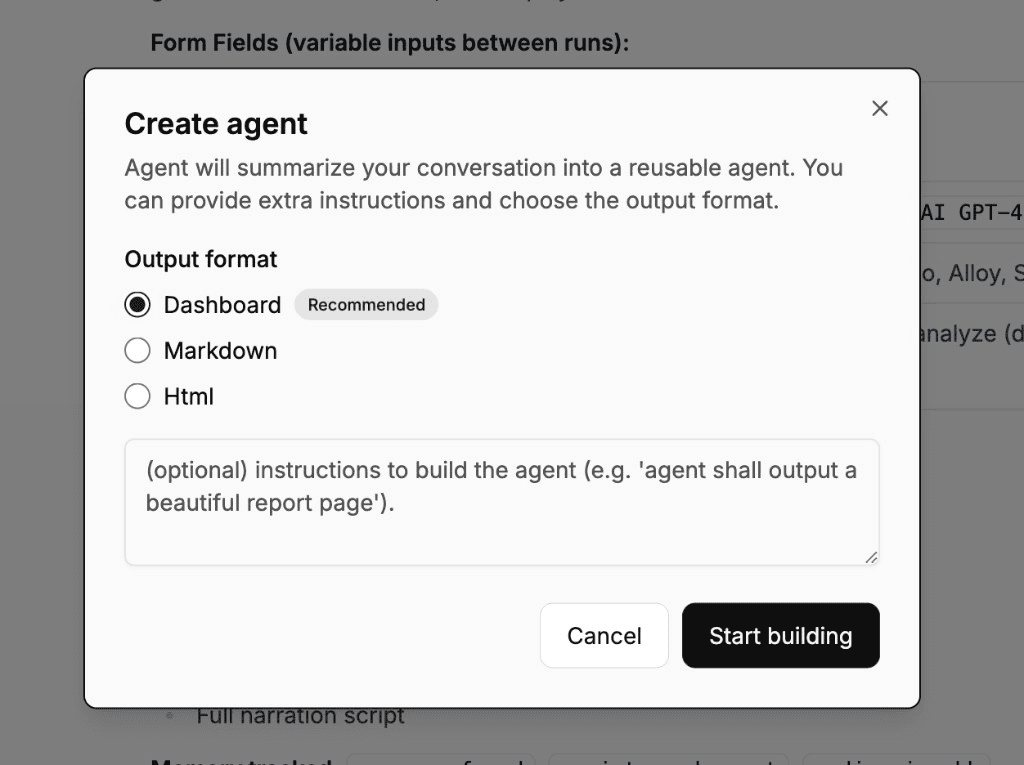
When the result looks right, click Create Agent in the input bar. CREAO analyzes the session and extracts the workflow.
III
Configure the agent
Choose an output format (Dashboard, Markdown, or HTML) and add optional instructions for how it should behave.
IV
Save and share
The agent appears in your workspace's Agents section, ready for anyone to run.
The Create Agent dialog with Dashboard as the recommended output format, plus Markdown and HTML options
The Create Agent dialog: pick an output format (Dashboard, Markdown, or HTML) and add optional instructions.
·

Input forms

CREAO automatically generates an input form based on your original prompt, so each run is parameterized. If the original session was a weekly marketing report, the agent might expose fields like team name, report type, topic, and time period. Each run fills in the fields and executes the same workflow with new values, using text inputs, dropdowns, and file uploads.

·

Versions and refinement

You refine an agent by sending follow-up messages in chat. Each follow-up creates a new version automatically, and the previous version is preserved, so you never lose a configuration that worked.

Every version captures the full setup: input fields, output format, execution instructions, and attached files. From version history you can read auto-generated release notes, publish a version, restore an earlier one, download any version as a ZIP, or pull updates from an upstream source agent.
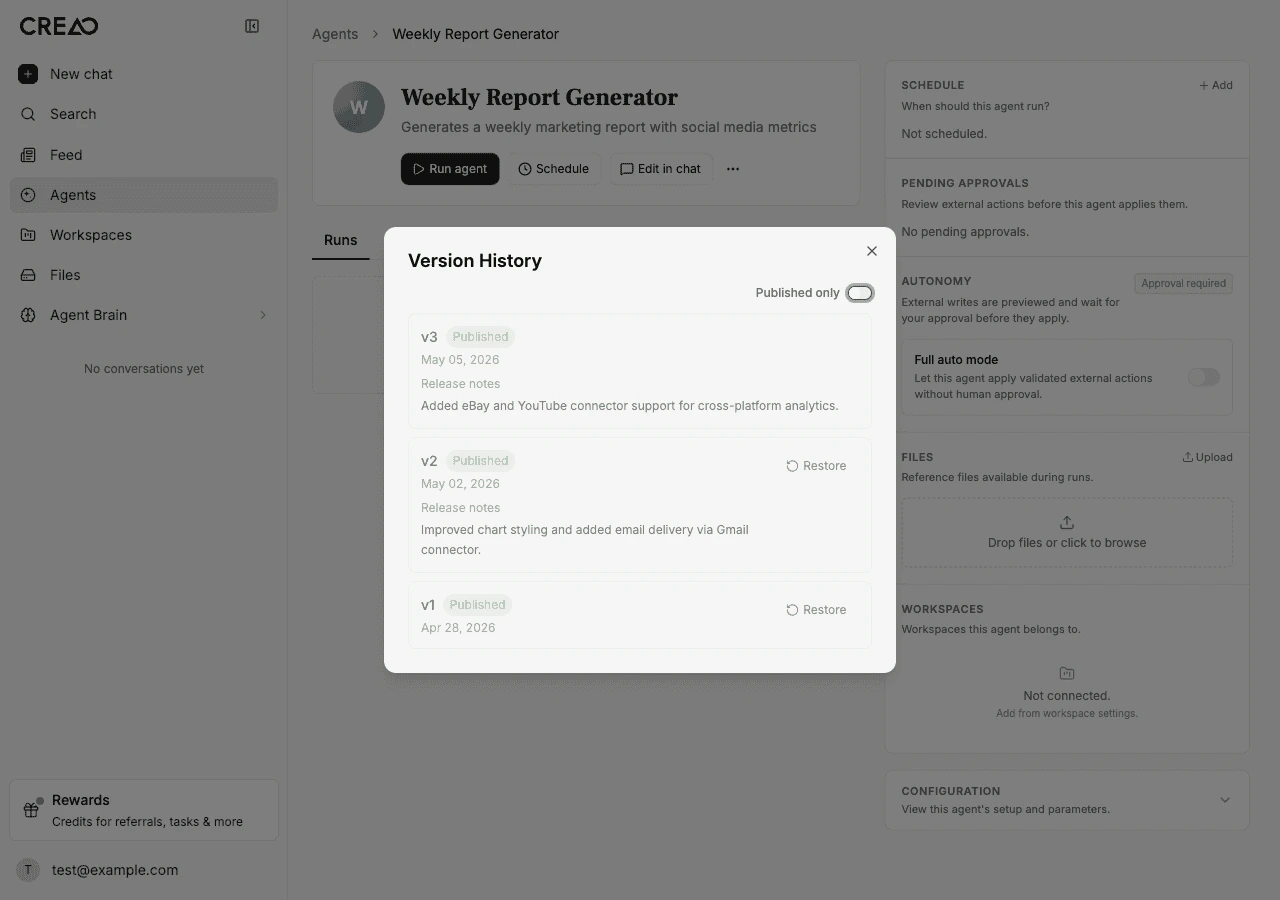
The Version History panel showing three agent versions with published badges, release notes, and restore options
Version history: every change is a new version, with release notes and one-click restore.
·

Reference files

Each agent has a Files tab: a manager for reference material the agent reads on every run, such as templates, datasets, images, or configuration. Files are attached automatically during creation or uploaded by hand (up to 10 MB each, 50 files per agent).

At run time, attached files are mounted into the sandbox at predictable paths, and the agent receives a manifest (app-files.json) mapping each display name to its path. That is how a report generator reuses a branded template, or a data analyzer reads a fixed dataset, every single run.

·

Running and sessions

The Agents page is your control surface. Each card shows last-run status and the next scheduled run, refreshing every 30 seconds, with a persistent Run button so you can launch directly from the list. If an agent needs inputs, a dialog collects them first.

Every run is recorded in the Sessions tab with inputs, outputs, status, and a link to the full thread. Agents created with the Dashboard format render an interactive dashboard of KPI cards, charts, and tables on every run, with a consistent layout where only the data changes.

·

Sharing and installing

You can share any agent you created with a direct install link from its version history. The recipient sees a preview with the name, description, and avatar, and an Install button that copies the agent into their own account. Installed agents show their source, and the recipient gets an independent copy they can customize and run without affecting the original.

·

Write autonomy and approvals

When an agent connects to external services like email, messaging, or marketplaces, some actions have real-world consequences. Write autonomy classifies every tool call and controls how it is handled.

Read
Fetching data, listing items, searching.
Always run immediately
Write
Sending a message, creating a post, updating a profile.
Approval required by default
Destructive
Deleting content, archiving channels, ending campaigns.
Blocked if validation fails

Each agent has an autonomy setting: approval required (the default), where write and destructive actions pause for an approval card you can Approve and Apply or Reject; or full auto, where write actions fire immediately with an audit record. Full auto is powerful but has no undo for actions like sending an email, so use it with care. Read-only actions are never gated.

·

Agents vs dynamic workflows

Agents and dynamic workflows are complementary. A dynamic workflow is ad hoc: you describe a goal and run it once. An agent packages a repeatable process with structured inputs you can re-run, and can be put on a schedule. Rule of thumb: if you would run the same request again with different inputs, build an agent; if it is a one-time push, run a dynamic workflow.

·

AI agent use cases

Recurring reports
A weekly marketing report that pulls the same metrics with a fresh date range every run.
Monitoring
An agent that checks an external source on a schedule and surfaces anomalies.
Content production
A drafting agent that follows an attached style guide and produces on-brand copy each run.
Operational tasks
A quote responder or data processor that runs the same workflow with new inputs each time.
·

Best practices

Start from a working prototype. Get the task right in chat first, then save it as an agent. A clean session produces a cleaner agent.

Iterate with follow-ups. Each refinement creates a version, so you can improve an agent over time without risk: restore an earlier version if a change does not work out.

Attach the fixed material. Put templates, datasets, and style guides in the Files tab so every run reads the same reference material.

Keep approvals on for external actions until you trust the workflow, then move to full auto where the consequences are acceptable.

·

Frequently asked questions

What is an AI agent in CREAO?+

An AI agent is a reusable workflow built from a successful chat session. Instead of re-prompting the same task, you save it as an agent and run it again with different inputs, on demand or on a schedule.

How do I create an agent?+

Complete a task in chat, then click Create Agent in the input bar. CREAO extracts the workflow, you choose an output format (Dashboard, Markdown, or HTML) and optional instructions, and click Start building.

What inputs can an agent take?+

CREAO automatically generates a structured input form from your original prompt, with fields like text, dropdowns, and file uploads. Each run fills in those fields and executes the same workflow with the new parameters.

Does an agent keep version history?+

Yes. Every modification creates a new version automatically, capturing the full configuration. You can view history, read release notes, publish, restore a previous version, download a version as a ZIP, or pull updates from a source agent.

Can I share an agent with others?+

Yes. From version history, click Share to copy an install link. When someone installs it, they get their own independent copy they can customize and run without affecting the original.

Can an agent send emails or post on my behalf?+

Yes, through write autonomy. Read actions always run; write actions require approval by default; destructive actions are blocked if validation fails. You can switch an agent to full-auto, where write actions fire immediately with an audit record.

What is the difference between an agent and a dynamic workflow?+

A dynamic workflow is ad hoc and runs your goal once. An agent packages that kind of multi-step work into something reusable with structured inputs, and can be put on a schedule.

Do agents run on a schedule?+

Yes. Any agent can be set to run automatically on a daily, weekly, monthly, or custom cron schedule, with an optional email summary after each run.
·
Build your first agent
Run a task in chat, then save it as an agent that runs again, on demand or on a schedule.