Scheduled runs execute a CREAO agent automatically on a recurring schedule (daily, weekly, monthly, or custom cron) and deliver the results without manual work.
Set a schedule once and your agents run themselves: morning briefings, Monday reports, round-the-clock monitoring, and recurring content, all delivered on the cadence you choose.
Scheduled runs let you execute an agent automatically on a recurring basis. Set up a schedule once, and CREAO runs the agent at the intervals you choose, delivering results without any manual work.
Scheduling is what turns an agent from something you run by hand into something that runs itself: a morning briefing that is ready before you sit down, a Monday report that compiles on its own, a monitor that checks a source around the clock.
·
How to set up a schedule
You add a schedule to an agent you have already created. It takes three steps.
I
Open an agent
Go to the Agents page and select the agent you want to run on a schedule.
II
Configure the schedule
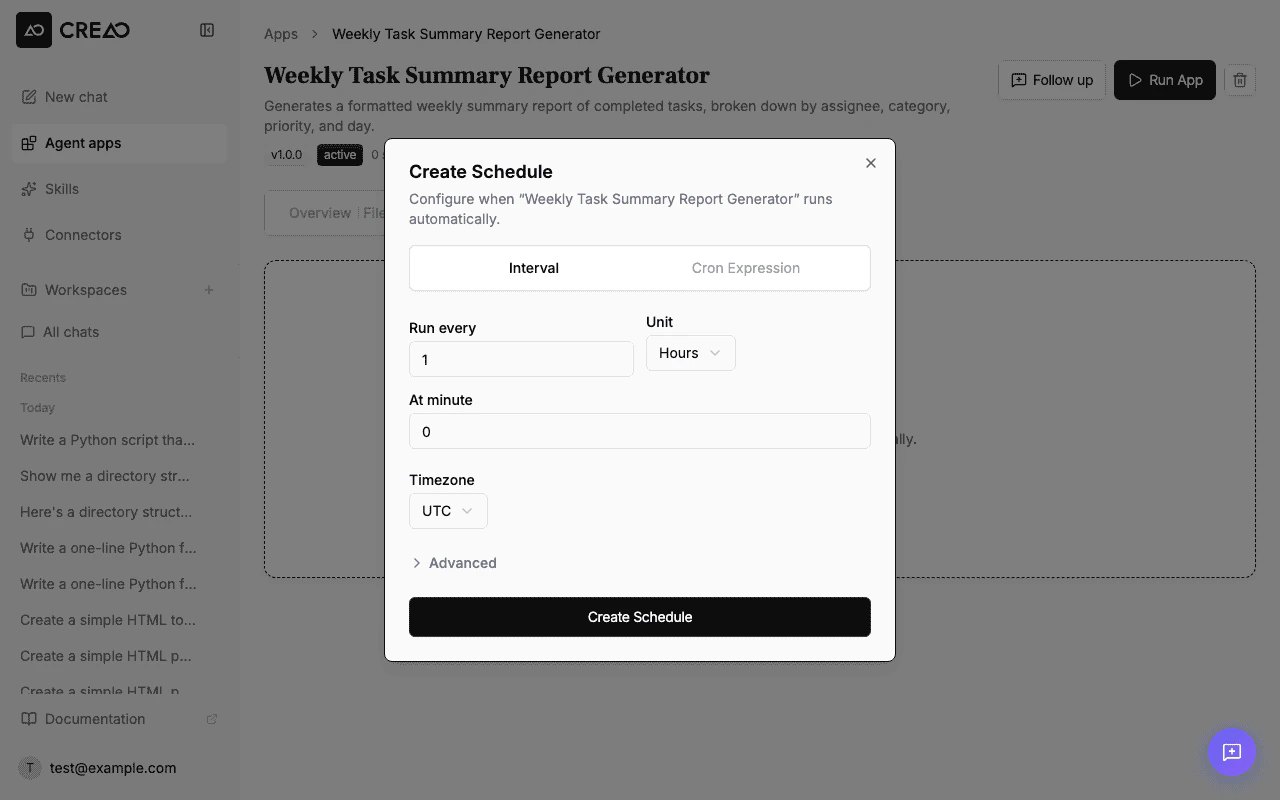
Open the Schedule tab, click Create Schedule, then set frequency, time, timezone, and delivery.
III
Activate
Click Create Schedule to activate. The next run time appears on the agent detail page.
The schedule configuration dialog: set frequency (interval or cron), time, timezone, and email delivery.
·
Schedule options
Pick a simple interval or a custom cron expression for precise timing.
Daily
Runs once every day at the set time
Daily standup summary at 9:00 AM
Weekly
Runs once per week on the chosen day
Weekly analytics report every Monday
Monthly
Runs once per month on the set date
Monthly invoice generation on the 1st
Custom
Cron expression for advanced timing
Every weekday at 6:00 PM
·
Email delivery
Opt in to an email summary after each run. When delivery is set to Email, you get a formatted message with the run outcome (succeeded, failed, or skipped), a concise summary of what the agent produced, and a direct link to the full session. Email delivery is best-effort, so if a summary fails to send, the run itself is unaffected.
·
Run history
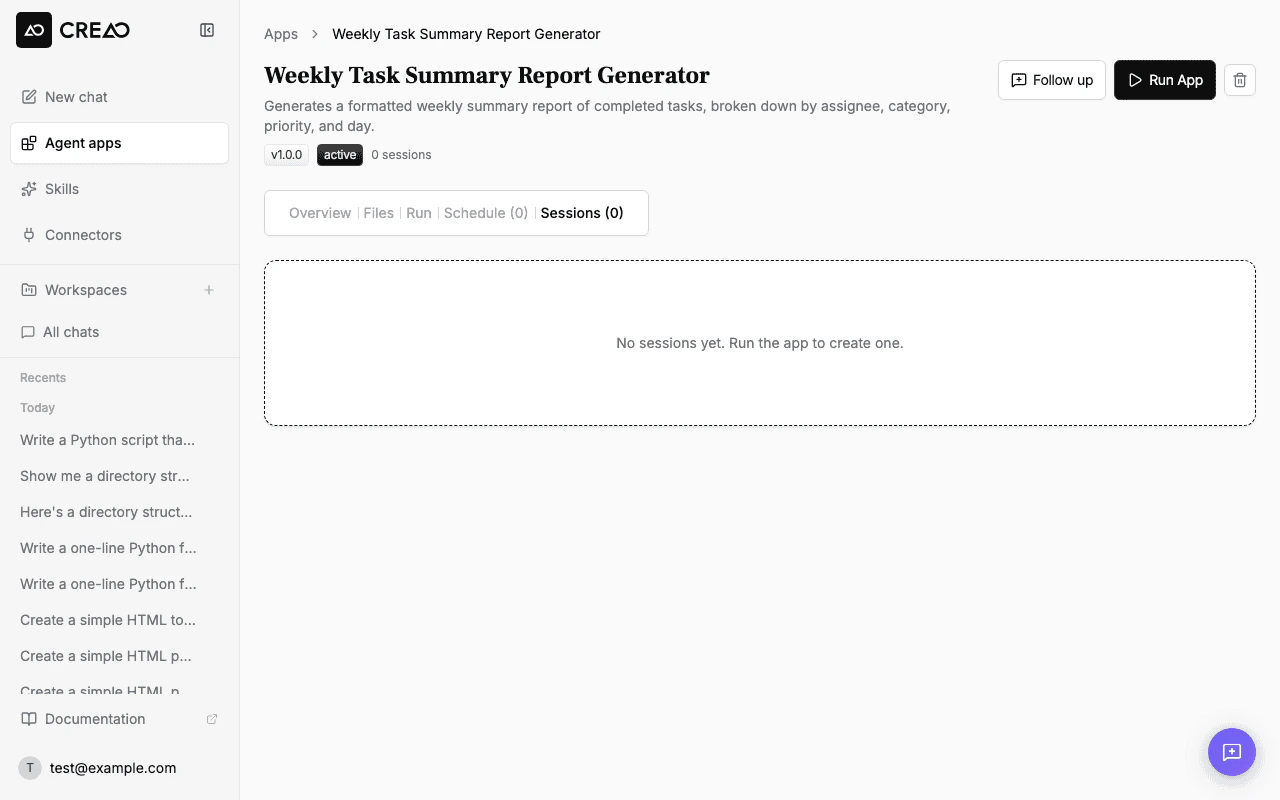
Each scheduled execution creates an entry in the agent's Sessions tab, alongside manual runs. You can view the output, confirm the run completed (or see a Skipped badge if it was skipped for insufficient credits), review exactly when it ran, and check whether the result email was sent.
The Sessions tab: every scheduled and manual run, with status, timing, and delivery.
·
Managing schedules
Pause
Toggle the schedule off. The configuration is preserved; toggle it back on to resume.
Modify inputs
Update the default inputs at any time. Changes take effect on the next scheduled run.
Delete
Remove the schedule entirely from the agent detail page. Past run history is preserved.
·
Skipped runs and auto-pause
Scheduled runs consume credits just like manual runs. If your account runs out, runs are skipped rather than failed: they show a Skipped badge in the Sessions tab and count toward the auto-pause threshold.
When a schedule accumulates two consecutive skipped runs, it auto-pauses and you receive an email explaining why (insufficient credits) and how to resume. Re-enabling resets the counter. Skipped runs auto-pause faster than other failures (two consecutive skips versus five for general errors) so a schedule that cannot succeed does not quietly burn through your daily credits.
·
Scheduled run use cases
Daily reports
Generate a morning briefing from your email, calendar, and project tools, ready before you start.
Weekly summaries
Compile analytics into a formatted report every Monday without lifting a finger.
Data monitoring
Check external sources on a schedule and surface anomalies as they appear.
Content generation
Produce recurring content like social posts or newsletter drafts on a cadence.
·
Best practices
Schedule a proven agent. Run the agent manually a few times first so you trust the output before it runs unattended.
Set the timezone deliberately. Pick the timezone your team works in so a "9:00 AM" report actually lands at 9:00 AM for the reader.
Turn on email delivery for anything you need to act on, so the result and session link reach your inbox.
Keep credits topped up. Monitor usage on the billing page so recurring schedules are not skipped and auto-paused.
·
Frequently asked questions
What are scheduled runs in CREAO?+
Scheduled runs execute an agent automatically on a recurring basis. You set up a schedule once, and CREAO runs the agent at the chosen intervals and delivers the results without manual work.
How do I schedule an agent?+
Open the agent on the Agents page, go to the Schedule tab, click Create Schedule, set the frequency, time, timezone, and delivery, then click Create Schedule to activate.
What frequencies are supported?+
Daily, weekly, monthly, or a custom cron expression for advanced timing such as every weekday at a set hour.
Do I get notified after each run?+
Optionally. Set Delivery to Email and you receive a summary with the run outcome, a concise result summary, and a direct link to the full session. Email delivery is best-effort and never blocks the run.
Do scheduled runs use credits?+
Yes. Scheduled runs consume credits just like manual runs, so it is worth monitoring usage on the billing page.
What happens if I run out of credits?+
Runs are skipped instead of failing and show a Skipped badge. After two consecutive skipped runs, the schedule auto-pauses and you get an email explaining why and how to resume.
Can I pause or edit a schedule?+
Yes. Toggle a schedule off to pause it (the configuration is preserved), update the default inputs for future runs, or delete the schedule entirely. Past run history is always preserved.
Do I need an agent first?+
Yes. Scheduling runs an existing agent, so you create the agent from a chat session first, then add a schedule to it.