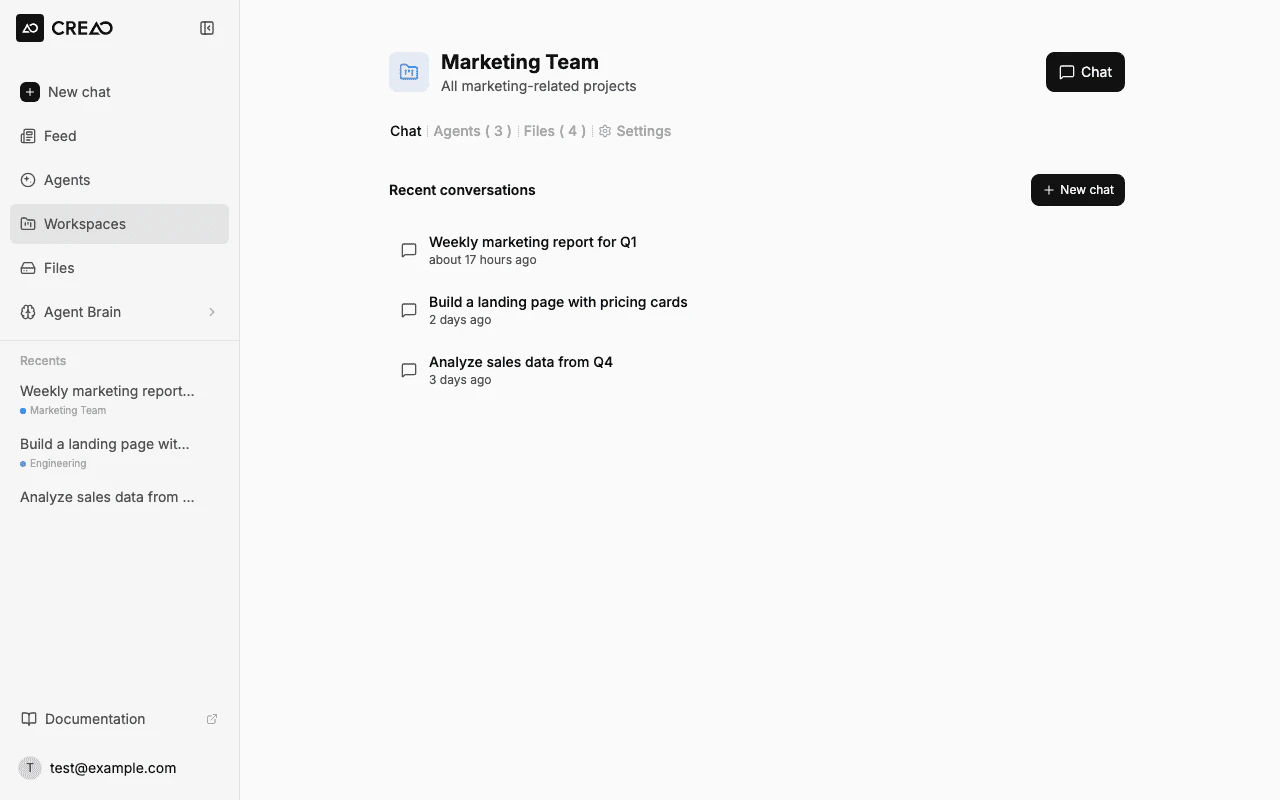
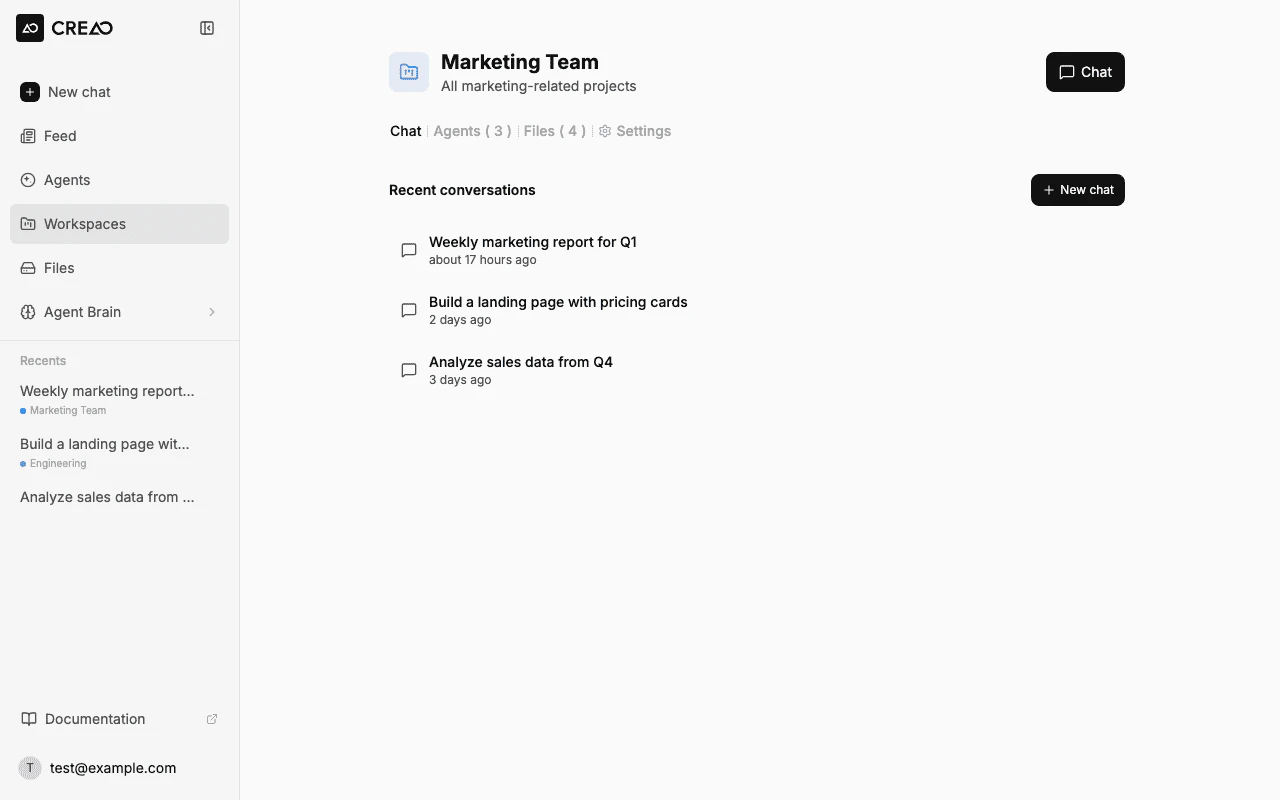
Workspaces are optional project containers that group related agents and files with their own persistent file system, so everything for a client or initiative lives in one place.
Think of them as project folders: each has its own files, a set of assigned agents, and a dedicated sidebar view. You do not need one to use CREAO, but they keep larger efforts tidy.
Workspaces are optional organizational containers that group related agents and files. Think of them as project folders: each workspace has its own file system, a collection of assigned agents, and a dedicated view in the sidebar. You do not need one to use CREAO, but they keep larger efforts tidy.
Use a workspace to keep everything for a client, product, or initiative in one place.
Organize by project
Keep all agents and files for a client, product, or initiative in one place.
Manage shared files
Upload reference docs, images, and data the agent can use across conversations.
Group agents
Assign agents to one or more workspaces so they appear together and share context.
·
Creating a workspace
I
Open the create dialog
In the sidebar, find the Workspaces section and click the + button next to the heading.
II
Name and configure
Enter a name and optionally pick agents to include from the start.
III
Open your workspace
Click the workspace name to open its edit panel, your command center for name, agents, and files.
The workspace edit panel: manage the name, assigned agents, and files in one view.
·
The workspace file system
Each workspace has its own storage. Files uploaded to a workspace are persistent: they survive across chat sessions and are available to any agent assigned to that workspace. Upload from the edit panel or drag and drop, and files generated during workspace chats appear here automatically.
Documents
PDF, DOCX, XLSX, PPTX, CSV, TXT
Images
PNG, JPEG, GIF, WebP, SVG
Code
JS, TS, PY, HTML, CSS, JSON
Archives
ZIP
The Files section: drag-and-drop upload, with images and documents organized for quick browsing.
·
Using workspace files in chat
When you chat within a workspace, the agent can access all of its files. Reference one by name and the agent finds it in the workspace storage and processes it.
# in a workspace chat
Analyze the sales-data.csv file in this workspace and create a summary report
·
Adding agents to a workspace
Agents can belong to multiple workspaces at once, so you can reuse the same agent across projects. In the Agents section of a workspace, click + Add, search for an agent, and add it. Removing an agent from a workspace only unassigns it; the agent itself stays available everywhere else.
·
Workspaces in the sidebar
Active workspaces appear in the sidebar. Each one shows its recent threads, the chats started in that workspace, and quick actions to start a new chat or open the edit panel, so you can switch between projects without losing context. Each workspace also gets a color for quick visual identification.
·
Best practices
Name by project or client. Descriptive names like "Q1 Marketing Campaign" or "Client: Acme Corp" make the sidebar easy to scan.
Put shared material in the workspace. Templates, datasets, and brand files uploaded here are available to every agent and chat in the workspace.
Reuse agents across workspaces. Assign one agent to several projects instead of duplicating it.
Remember they are optional. Start chatting without a workspace and add one when a project grows enough to need it.
·
Frequently asked questions
What is a workspace in CREAO?+
A workspace is an optional project container that groups related agents and files with its own persistent file system, like a project folder for a client, product, or initiative.
Do I need a workspace to use CREAO?+
No. Workspaces are optional and used to organize resources. You can sign in and start chatting without creating one.
Are workspace files persistent?+
Yes. Files uploaded to a workspace survive across chat sessions and are available to any agent assigned to that workspace.
Can an agent belong to more than one workspace?+
Yes. Agents can belong to multiple workspaces at once, so you can reuse the same agent across different projects.
When you chat within a workspace, the agent can access all its files. Reference a file by name and the agent finds it in the workspace storage and processes it.
How do I create a workspace?+
In the sidebar Workspaces section, click the + button, name it, optionally add agents, then open it to manage name, agents, and files.